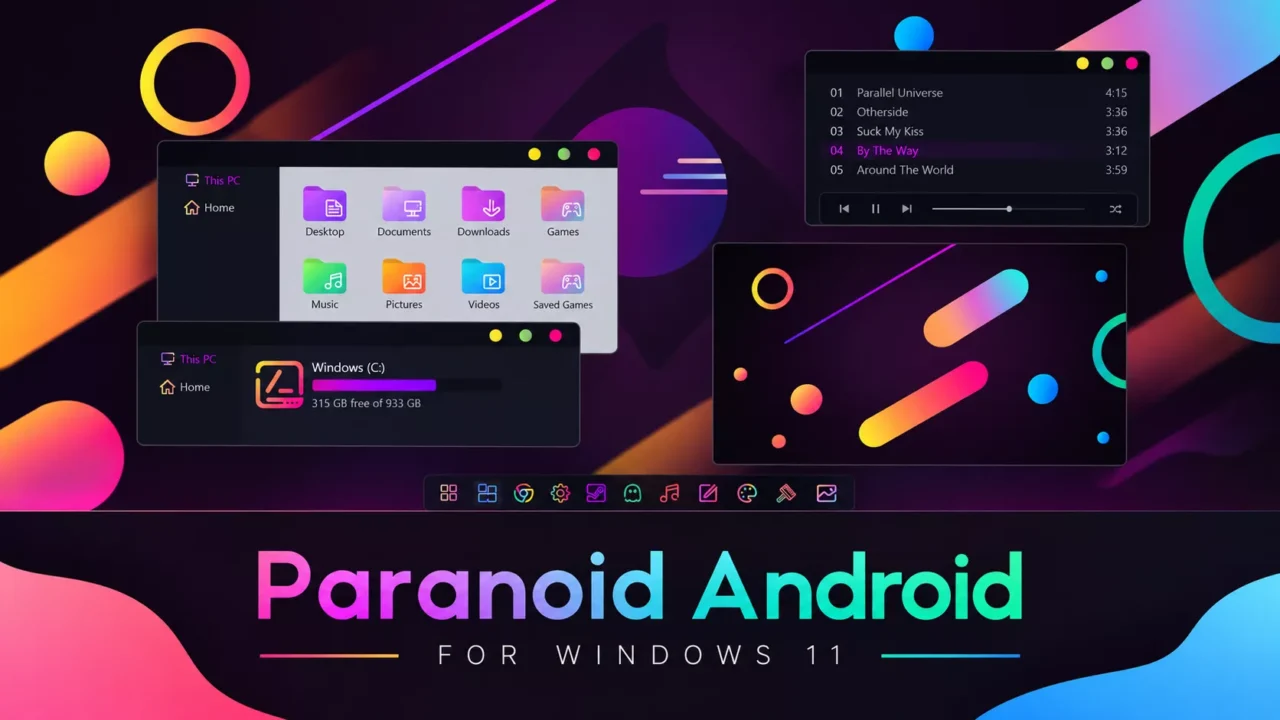
Paranoid Android Theme for Windows 11 Overview
The Paranoid Android Theme for Windows 11 is a colorful and stylish Windows 11 customization pack inspired by the distinctive design and vibrant aesthetics of Paranoid Android. It features three unique color editions “LUV, Nebula, and Sweet” each available in light, dark, and night modes, with options to use themes with or without the address bar (NA). With a total of 27 different themes, this pack offers plenty of ways to personalize your desktop and create a look that matches your style.
The package also includes 7tsp extras to expand your system customization, foobar2000 customization for music lovers, a collection of matching wallpapers, and StartAllBack Orbs to add a finishing touch to your Start Menu. Whether you prefer vibrant colors or a darker, more immersive desktop, the Paranoid Android Theme brings a fresh and cohesive look to Windows 11.
What Is Included in This Paranoid Android Theme Pack
The Paranoid Android package contains several customization elements designed to work together. Each component can be applied individually or combined for a complete desktop customization experience.
Custom Visual Themes
The Paranoid Android theme brings 27 distinctive visual styles featuring LUV, Nebula, and Sweet to Windows 11. Refresh your desktop appearance with elegant borders, redesigned title bars, and personalized system color settings.
StartAllBack Orbs
Complete the Paranoid Android setup with StartAllBack Orb style that bring a matching Start menu button design to your taskbar.
7tsp Extras & System Tweaks
Complete the customization experience with 3 7tsp extras and system tweaks offering control panel and system color tweaks, bringing useful companion resources to your Windows theme setup.
foobar2000 Skin
Includes foobar2000 skin style to personalize your music player with a custom interface that matches your theme.
Wallpaper Collection
Transform your desktop with wallpaper designs created to complement your Windows customization setup.
Windows Theme Prerequisites (Required Tools)
- SecureUXTheme: Install a compatible version of this tool to use the included Windows themes.
- StartAllBack: Use this application to load the supplied taskbar and Start menu customizations.
- 7tsp GUI: Have this tool ready before applying the bundled 7tsp icon customizations.
How to Install the Paranoid Android Theme on Windows
To use the Paranoid Android component, you must first install the necessary tools listed in the System Requirements section. Each tool unlocks specific customization features, so you only need to install the ones that match your desired setup.
- Create a System Restore Point Before modifying Windows appearance settings, Create a restore point. This provides a recovery option if a customization component does not work correctly or conflicts with your Windows configuration.
- Install a Theme Patcher Install a theme patcher such as UltraUXThemePatcher or SecureUxTheme to enable Windows to support custom visual styles. Restart your PC after installation to complete the setup.
- Apply the Custom Windows Theme Extract the downloaded Paranoid Android theme package and copy the theme files to
C:\Windows\Resources\Themes. Select the theme from Settings → Personalization → Themes to activate the custom Windows Theme. - Choose the custom Start button Open StartAllBack Properties, go to Taskbar, find the Start button/orb selection area, click the + (Add/Browse) button beside the available orbs, select your custom orb image, and choose it from the orb list to apply the new Windows Start button.
- Set the included wallpaper Choose a wallpaper from Paranoid Android and apply it through Windows Personalization settings.
- Install 7TSP Extras & System Tweaks Open 7TSP, select Add a Custom Pack, choose the provided 7TSP Extras pack, and click Start Patching. Apply any included
.regsystem tweaks as instructed, then restart your PC to activate the customized Windows system elements. - Install foobar2000 Skin Open foobar2000, go to File → Preferences → Display, import or select the provided skin/theme configuration, then apply the changes and restart foobar2000 if required to load the new interface.
- Create a system restore point before starting — it's your safety net if anything goes wrong.
- Install Theme Patcher first third-party Windows themes won't work without it.
- New to custom themes? Follow this step-by-step installation guide for beginners.
- Prefer video tutorials? Watch the full visual walkthrough on my YouTube channel.
- Supported versions: Windows 10 version 2004 through 22H2.
✓ Virus scanned | ✓ No signup required | ✓ 100% Free
Windows Theme System Requirements (Minimum / Recommended)
Before installation, make sure your computer meets the required Windows version and has enough resources to run the customization tools smoothly.
| Component | Minimum | Recommended |
|---|---|---|
| Operating System | Windows 11 64-bit | Windows 11 64-bit |
| Build Version | 21H2 | 25H2 |
| RAM | 2 GB | 4 GB+ |
| DirectX | DirectX 9 | DirectX 11/12 |
| CPU | 1 GHz dual-core | 1.6GHz dual-core+ |
| VRAM | 1 GB / Shared | 2 GB+ |
| GPU | Integrated graphics | Integrated graphics |
| Display | 768p | 1080p or higher |
| Expected Experience | Basic theme functionality | Smooth everyday use |
Windows Theme Troubleshooting & Common Issues
- Dark Mode Theme Not Displaying Correctly The Dark theme modifies colors superficially without affecting key components of the Explorer. If a Night mode is available, use that instead.
- Start orb reverted to default? Reselect the custom orb inside StartAllBack’s Start button settings after any Windows update.
- Some system colors unchanged? Reapply the control panel/system tweaks from 7tsp Extras & System Tweaks after any Windows feature update.
- Wallpaper looks stretched or blurry? Match the wallpaper resolution to your monitor and set the fit mode to "Fill" or "Fit."
Frequently Asked Questions About Windows Theme
Which Windows versions support Paranoid Android?
Check the Supported platforms and System Requirements sections for the selected Windows builds before installing Paranoid Android.
How do I install Paranoid Android?
Start with the preparation and installation steps above, then follow the instructions for your selected components.
How do I use Custom Visual Themes with Paranoid Android?
Use the theme compatibility tool specified in Prerequisites and follow the supplied visual-style instructions for your Windows build.
How do I use Custom Windows StartAllBack Orbs with Paranoid Android?
Choose the supplied Start button image in the compatible Start menu application documented by the author.
How do I use Curated HD Wallpaper Collection with Paranoid Android?
Select the included image through Windows Personalization and choose a fit appropriate for your display.
How do I use 7tsp Extras & System Tweaks with Paranoid Android?
For 7tsp Extras & System Tweaks, Check that the 7tsp package supports your exact Windows build and follow its supplied backup and installation instructions. Refer to the included documentation if the available options differ.
Theme Information and Updates
- Windows 11 Theme: Paranoid Android
- Package format: ZIP Archive
- Supported platforms: Windows 11
- Last reviewed:October 2026
Compatibility information should be reviewed whenever Windows receives a major feature update or when the included customization tools release a new version.
About This Paranoid Android Theme for Windows 11 Creator
niivu is the artist behind Paranoid Android, a Windows customization project built around clean, consistent visuals.
Final Thoughts on Windows Theme
Overall, this custom Windows theme is a standout addition to any themer's collection. Offering a single captivating style, it provides ample room for personalization. It also includes StartAllBack Orbs, 7tsp Extras & System Tweaks, foobar2000 Skin and Wallpaper Collection, with a 7tsp Icon pack rounding out the system icon coverage. If you want a desktop that feels truly yours, this theme is well worth the download.