How to Install a 7tsp Icon Pack on Windows
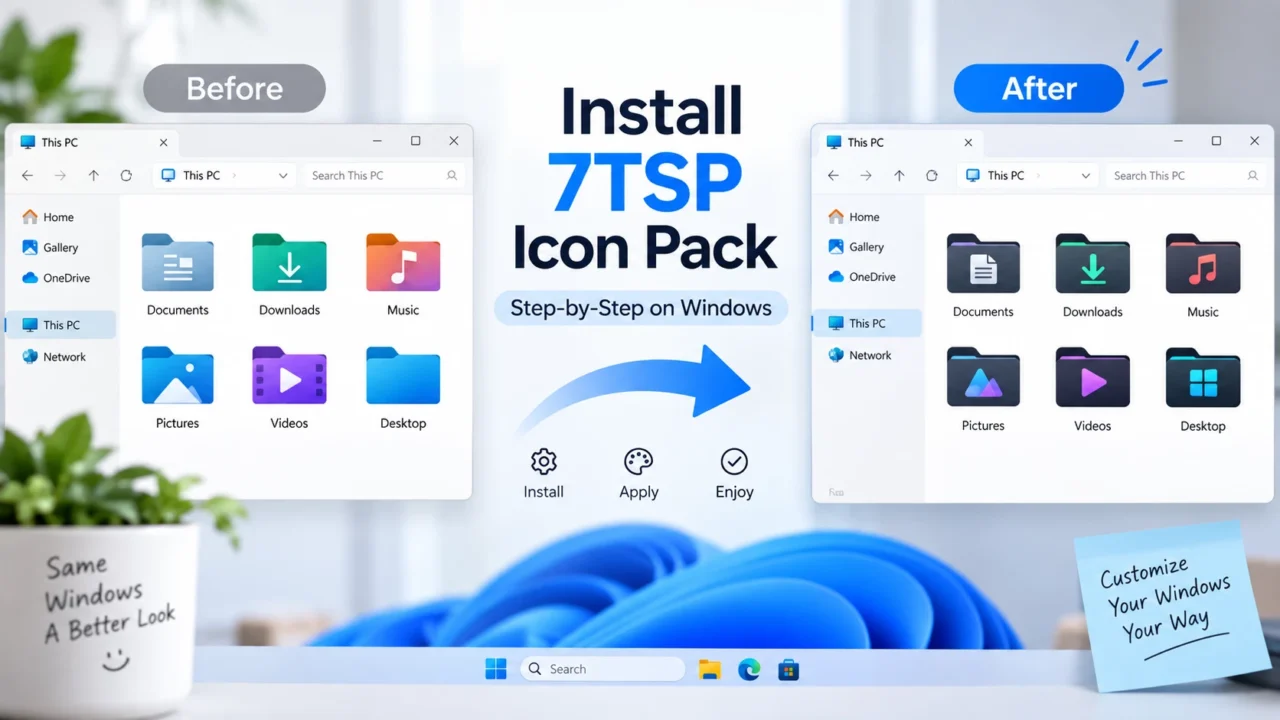
If you are tired of the default yellow folders and standard system icons on Windows 10 or 11, installing a custom icon pack is one of the best ways to completely refresh your desktop.
The easiest and most popular method for applying deep-system icon themes is by using 7TSP GUI (Se7en Theme Source Patcher). In this guide, we will walk you through exactly how to install a 7tsp icon pack safely and efficiently.
What You Need Before Starting
Before we begin, you will need to gather a few things:
- 7TSP GUI: Download the latest version of the 7TSP GUI patcher.
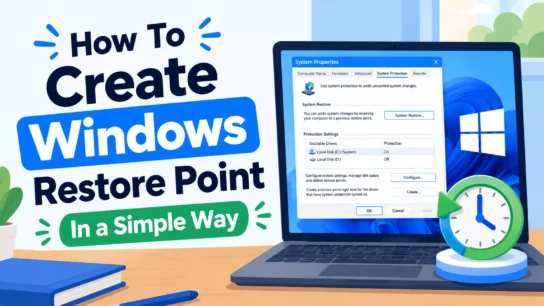
- A manual System Restore point (crucial for safety).
- An Archiver Tool: Make sure you have 7-Zip or WinRAR installed to extract initial downloads.
- Your chosen 7TSP icon pack (must be in .7z or .zip format).
Patching system icons modifies core Windows files. Always Create a System Restore Point before proceeding so you can easily revert changes if something goes wrong.
Step-by-Step 7tsp Icon Pack Installation Guide
-
Prepare Your Files
Check the file extensions carefully, Most of windows customization files are uploaded with altered extensions.- If your 7TSP GUI application file ends in
.ee, right-click it, select Rename, and change it to.exe. - If your downloaded icon pack ends in
.7z.remove, rename the file and delete the.removeportion so it acts as a standard.7zarchive
- If your 7TSP GUI application file ends in
-
Run 7TSP GUI as Administrator
Admin privileges are requiredRight-click the 7TSP GUI
.exefile and select Run as Administrator. The app requires elevated privileges to modify system icons. -
Load the Icon Pack
Click on the Add a Custom Pack button inside the 7TSP interface. A file explorer window will open. Navigate to the folder where you saved your downloaded icon pack and select the
.7zfile. (Do not extract the icon pack’s .7z file itself—7TSP needs the archive intact). -
Start Patching
This will take a few minutesClick on Start Patching. By default, 7TSP will attempt to create an automatic restore point before it begins injecting the new icons into your system files. Wait for the progress bar to finish.
-
Reboot Your PC
Once the installation is complete, 7TSP will notify you and ask to restart your computer. Click Yes to reboot. Upon logging back into Windows, your new icon pack will be fully applied!
How to Uninstall and Restore Default Icons
Changed your mind? Restoring your PC back to its original state is just as simple:
- Open the 7TSP GUI again
- Click on the Restore button.
- Choose the option to restore your system icons.
- Reboot your computer, and you’ll be back to the default Windows look.
Frequently Asked Questions (FAQ)
Is it safe to use 7tsp to change Windows icons?
While 7tsp is a popular and effective tool for customizing Windows, it works by modifying core system files. It is generally safe if you use compatible icon packs, but you must always create a System Restore point before applying a patch to ensure you can recover your PC if something goes wrong.
How do I uninstall a 7tsp icon pack and restore default Windows icons?
To revert to your original icons, simply open the 7tsp GUI, click on the ‘Restore’ button, and confirm that you want to restore the default system files. Once the tool finishes, restart your computer, and your default Windows icons will be back.
Can I use 7tsp icon packs on Windows 11?
Yes, 7tsp works on Windows 11, but you must make sure that the specific icon pack you downloaded explicitly states it is compatible with your current Windows 11 build. Applying an outdated or incompatible pack can lead to missing icons or system instability.
What should I do if my icons go black or disappear after using 7tsp?
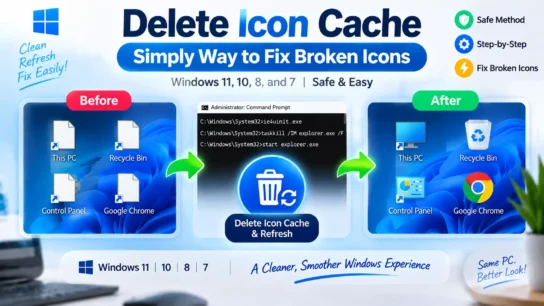
If your icons break or show black squares, try rebuilding your Windows Icon Cache first. If rebuilding the cache does not fix the issue, reboot your PC into the Windows Recovery Environment and roll back to the System Restore point you created before installing the pack.
Will Windows updates break my 7tsp custom icons?
Yes, major Windows updates frequently overwrite modified system files with fresh, original copies. This will revert your custom 7tsp icons back to the default Windows look. You will need to reapply the icon pack using the 7tsp patcher after the update is complete.